Easy Heading Macro navigationIndent 5
| Excerpt | ||||||||
|---|---|---|---|---|---|---|---|---|
| ||||||||
You will have to define a set of Worklog Types (Name, Icon & Color) ...
|
Worklog Types page ...
Worklog Types allows you to qualify your logged work. To access the Worklog Types management page:
|
|
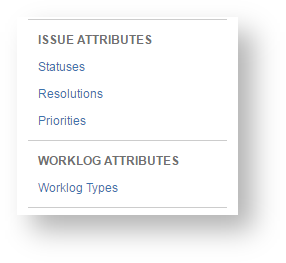
List of Worklog Types
When accessing the Worklog Types page, all previously created Worklog Types will be displayed.
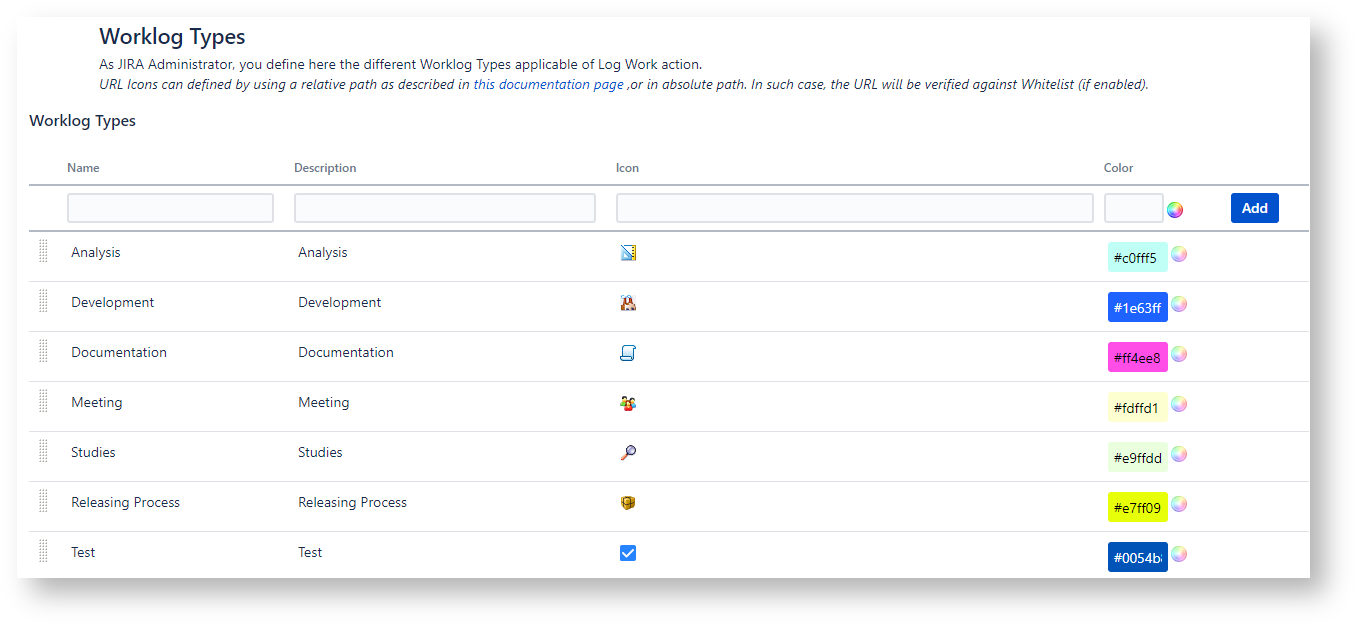
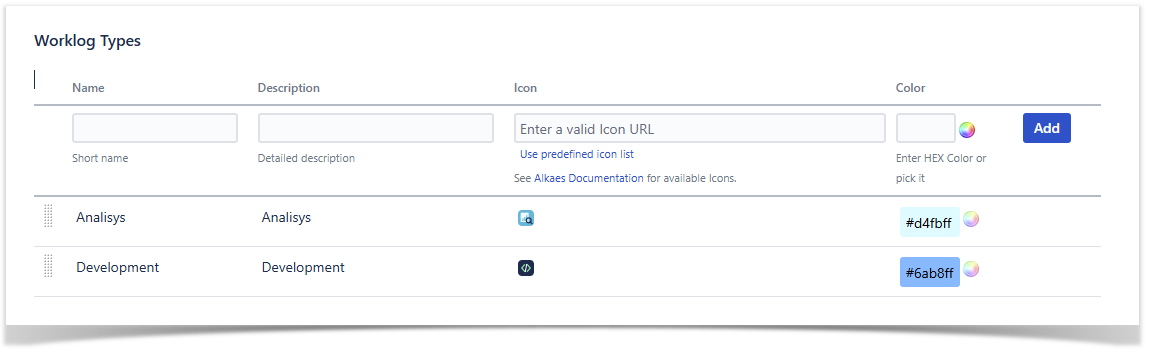
A Worklog Type is described by these below attributes ...
Attributes | Description |
|---|---|
Name | The name of the Worklog Type. (Since Worklog Type have been moved under AO, the ability to translate Name is no more available) |
Description | The description the Worklog Type. |
IconPath | The icon to This icon associate with the Worklog type. It can be :
The selected icon will be always retained by its URL and is used for report generation. Some default icons are available (see below table) |
Color | A color representing the Worklog Type. This color is used for report generation.
|
Order | This attribute stores the order in which Worklog Type will appear in the Worklog Gadget and in JIRA's Log Work page. It is updated when moving the Workog Worklog Type row. |
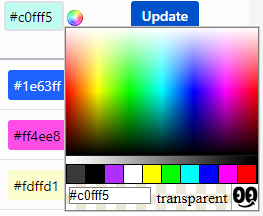
Create/Update a Worklog Type
You can add your own Worklog Type by specifiying specifying the different expected attributes, and then clicking on Add. .
.

For the Icon, you can ...
| ... provide your Icon URL | ... and use one of available Icon |
|---|---|
or switch to predefined Icon List ... |
|
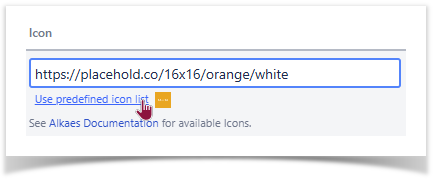
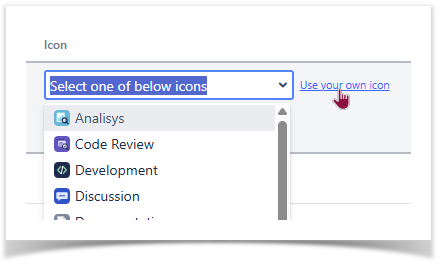
When the Worklog Type is created, you can re-edit it ...

... switch back to predefined icons list and Update the row with relevant modifications.


Note also that on On Create and Update phases, the unicity f Worklog Types is verified ...
Delete a Worklog Type
When trying to delete a Worklog Type, if it is always used, it will be possible :
|
|
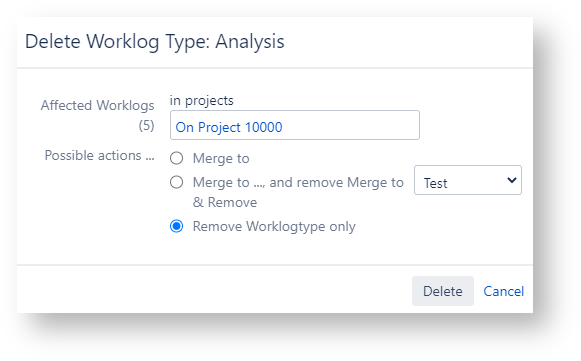
Worklog Type Icons
When creating/editing Worklog Type, you can specify any Icon, by using an absolute or based on contextPath.
You can use icons already present in Issue Type configuration.
The plugin embeds additional Worklog Type icons. To use them, you will have to specify a Icon path with :
following format : /download/resources/fr.alkaes.minyaa.jira-plugin-minyaa-time:myaatm-icons/icons/worklogtypes/<IconFileName>
where <IconFileName> is one of below icons file name
Predefined Icons :
Worklog Type | PNG | Icon file Name | SVG | Icon file Name |
|---|---|---|---|---|
Analysis |
| wlAnalisys_16.png |
| wlAnalisys.svg |
Development |
| wlDevelopment_16.png |
| wlDevelopment.svg |
Discussion |
| wlDiscussion_16.png |
| wlDiscussion.svg |
Documentation |
| wlDocumentation_16.png |
| wlDocumentation.svg |
Mail Review |
| wlMailReview_16.png |
| wlMailReview.svg |
Meeting |
| wlMeeting_16.png |
| wlMeeting.svg |
Pair Programming |
| wlPairProgramming_16.png |
| wlPairProgramming.svg |
Phone Call |
| wlPhoneCall_16.png |
| wlPhoneCall.svg |
Releasing Process |
| wlReleasing_16.png |
| wlReleasing.svg |
Studies |
| wlStudies_16.png |
| wlStudies.svg |
Code Revieww |
|
| wlCodeReview.svg | |
Settings Review |
|
| wlSettingsReview.svg |


About Translation capacities
Instead of Minyaa 3.x, where Worklog Type was based on a extension of the JIRA Constant Manager and where Minyaa was able to benefit from the Constant Translation Manager, Minyaa 4.x has not yet a Translation mechanism.